
Ever spent way too long trying to find the right version of your company logo? Or worse—used the wrong one in a client presentation? Microsoft just made that a whole lot easier with a new PowerPoint feature called Organisation Images.
But before we get into the feature itself, let’s talk about the foundation that makes it all work: Organisation Asset Libraries.
What’s an Organisation Asset Library?
An Organisation Asset Library (OAL) is a special type of SharePoint document library that your IT team can set up to store company-approved assets—like logos, templates, stock photos, and more.
Once it’s configured, these assets become easily accessible across Microsoft 365 apps like Word, PowerPoint, and SharePoint. Think of it as a central, always-up-to-date “brand hub” that lives in the cloud.
There are two types of OALs:
- Images: For logos, photos, icons, etc.
- Office Templates: For Word, Excel, and PowerPoint templates
The new PowerPoint feature we’re talking about taps into the image type.
So what’s new?
With the Organisation Images update (Roadmap ID 509111 / Message Center MC1169573), PowerPoint now includes a built-in option to browse and insert images directly from your company’s OAL.
Here’s what that means for you:
- No more downloading logos from email or Teams.
- No more wondering if you’re using the “right” version.
- No more off-brand visuals sneaking into your slides.
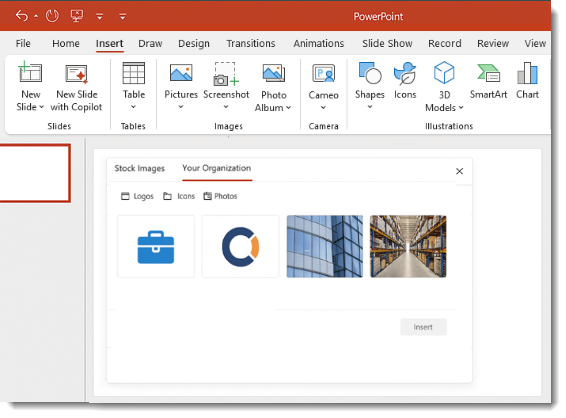
You’ll see a new “Your Organisation” tab when inserting images, right alongside options like “Stock Images” and “From This Device.”
✅ Pros
- Saves time: No more hunting for assets.
- Brand consistency: Everyone uses the same, approved visuals.
- Easy access: It’s built right into PowerPoint—no extra tools needed.
- Cloud-based: Always up to date, no version control headaches.
⚠️ Gotchas (Heads-Up!)
- Setup required: Your IT team needs to create and register the OAL using PowerShell. If they haven’t, you won’t see the feature.
- No subfolder filtering: Only top-level folders are supported for filtering in the image picker.
- Metadata matters: If you have a lot of images and they aren’t tagged well, they’ll be hard to find
- Microsoft 365 only: This only works in Microsoft 365 tenants with the right licenses.
- Enhanced searchability: If you want to use Copilot in PowerPoint to automatically search and insert branded images from your OAL using natural language prompts (eg “add a photo of our warehouse”), or use enhanced AI tagging (like Microsoft Syntex pay-as-you-go tagging) to improve image discoverability, then you’ll need a Microsoft 365 Copilot license, and your OAL must be configured with CopilotSearchable = $true via PowerShell.
What Admins Need to Do
- Create a SharePoint document library
This will house your approved images. - Register it as an Organisation Asset Library
Use PowerShell to make it discoverable across Microsoft 365.
Setup guide here - Upload and organise your images
Use clear folder names like “Logos” or “Event Photos.” - Setup for AI enhanced searchability, if using:
Apply descriptive tags and metadata to each image run PowerShell script (CopilotSearchable)
Is it worth it?
This is one of those “small but mighty” features that can save time, reduce errors, and keep your brand looking sharp. If your organisation hasn’t set up an Organisation Asset Library yet, now’s a great time to nudge your IT or comms team.